> ## Documentation Index
> Fetch the complete documentation index at: https://docs.videowise.com/llms.txt
> Use this file to discover all available pages before exploring further.
# Working with custom platforms
> Learn how to integrate Videowise on non-Shopify platforms, headless Shopify, and custom storefronts.
Integrating Videowise on custom platforms has two parts:
1. **Script initialization** — adding Videowise scripts to your website
2. **Widget locations** — setting where you want widgets to appear
This guide covers script setup via `window.videowiseInfo`, and how to handle add-to-cart on headless or custom storefronts. For Shopify Online Store, the Videowise app injects scripts for you — skip to [custom events](/shoppable-videos/custom-events) or [widget re-rendering](/shoppable-videos/re-rendering) only if you need them.
Use `window.videowiseInfo` on all non-Shopify platforms (SFCC, Magento, WooCommerce) and on headless Shopify.
## Setting up `videowiseInfo`
### Minimum implementation
To add scripts to your website, insert the following code before the closing `` tag:
```html theme={null}
```
### Populating `videowiseInfo` correctly
| Field | Notes |
| --------------- | ------------------------------------------------------------------------------------------------------------------------------------------------------------------------------------------------------------ |
| `shop` | Must be set to the correct `myshopify.com` domain. For the live channel this (or `host` / `Shopify.shop`) is what loads show lists. |
| `cartType` | Required on non-Shopify / headless. Possible values: `shopify`, `magento`, `sfcc`, `tapcart`, `other`. On classic Shopify Online Store it is auto-detected. |
| `currency` | Store currency (e.g. `USD`). Recommended for live shopping; defaults to `USD` if omitted. |
| `currencyRate` | Optional; defaults to `'1'`. |
| `pid` | Product ID when rendering a product page; `null` or `''` on non-product pages (shoppable widgets) |
| `locale` | Current locale the customer is navigating |
| `route` | Equivalent to `window.Shopify.routes.root` when available. For a URL like `myshopify.com/en`, use `"/en/"`; otherwise fall back to `"/"` |
| `host` | Optional alias for shop identity (`shop` alone is enough for the channel) |
| `vwHostOwnerId` | Optional. When set on a live channel page, filters **active / upcoming** and **past** lists to that host only. See [Filter shows by host](/live-shopping/channel-layout#filter-shows-by-host-vwhostownerid). |
| `forceDomain` | Optional. When `true`, live shopping Shopify Ajax uses `https://{host or shop}` instead of relative URLs. See [forceDomain](#forcedomain). |
### `forceDomain`
By default, live shopping Shopify Ajax calls (`/products/{handle}.js`, `/cart/add.js`, `/cart.json`) use **relative** URLs, so they hit the current page origin.
On headless or custom domains that origin may not serve Shopify Ajax. Set `forceDomain: true` on `window.videowiseInfo` **before** the live shopping script so those requests go to `https://{videowiseInfo.host || videowiseInfo.shop}` instead:
```html theme={null}
```
The player copies this flag into the live iframe with the rest of `videowiseInfo`. It is also on automatically in the React Native webview and Videowise preview. Absolute URLs already passed into the player are left unchanged.
### Full structure for `window.videowiseInfo`
```ts theme={null}
{
addToCartUrl: string;
cartURL: string;
checkoutURL: string;
currency: string;
currencyRate: string;
cartType: '' | 'shopify' | 'magento' | 'sfcc' | 'tapcart' | 'other';
host: string;
locale: string;
pid: string;
productDetailsURL: string;
siteID: string;
withLiveStream: boolean;
route: string;
customCart?: boolean; // Shopify: skip Ajax add.js, emit videowiseProductAddToCart
vwHostOwnerId?: string; // optional — filter live channel shows by host
forceDomain?: boolean; // optional — Shopify Ajax against videowiseInfo.shop
}
```
## Handling add to cart
In most headless setups, add-to-cart is handled by custom logic — not only adding the item, but also opening a cart drawer, showing notifications, or updating UI. Because of this variability, Videowise does not perform the add-to-cart action directly.
Instead, Videowise emits custom browser events that your application can listen for and handle with your own logic. The full widget event list is in [Custom events](/shoppable-videos/custom-events).
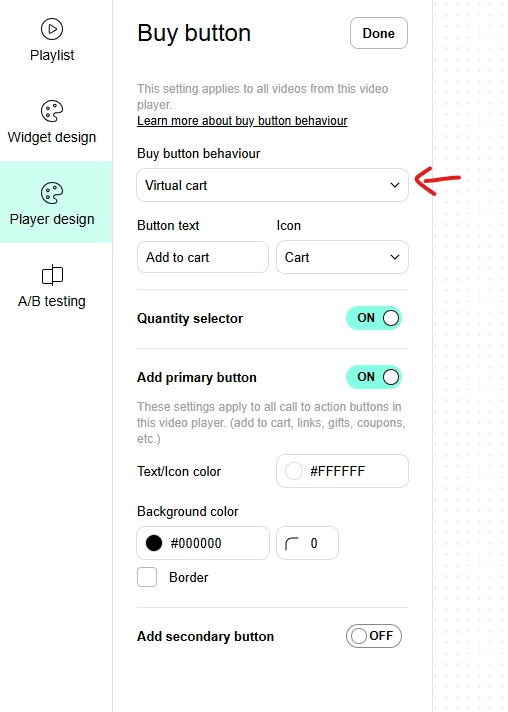
To enable this, set **Buy button behaviour** to **Virtual cart** in:
**Widget → Player design → Buy button**
### Custom event: `videowiseProductAddToCart`
When a user clicks **Add to Cart** inside the Videowise widget, a `videowiseProductAddToCart` event is dispatched. Product details are available on `event.detail`:
* `variantId` — the Shopify variant ID
* `qty` — the selected quantity
Listen for the event and run your own add-to-cart logic:
```js theme={null}
window.addEventListener('videowiseProductAddToCart', (event) => {
const { variantId, qty } = event.detail || {};
if (variantId && qty) {
// Add product to cart
addToCart(variantId, qty);
// Trigger additional UI actions (e.g. open cart drawer)
openCartDrawer();
}
});
```
To close the Videowise player after a custom add-to-cart action, dispatch `videowiseTriggerPlayerClose`:
```js theme={null}
window.addEventListener('videowiseProductAddToCart', (event) => {
const { variantId, qty } = event.detail || {};
if (variantId && qty) {
addToCart(variantId, qty);
openCartDrawer();
// Close the Videowise player
window.dispatchEvent(new CustomEvent('videowiseTriggerPlayerClose'));
}
});
```
## Hydrogen-specific notes
* Before rendering, set `pid` on `window.videowiseInfo` to the product ID.
* When navigating away from a product page, set `pid` to `null`.
* After client-side navigation, re-render widgets with [`initVideowise` / `initVideowiseBulk`](/shoppable-videos/re-rendering).
## Live shopping channel on custom platforms
If `window.videowiseInfo` is not already on the page, set at least the fields below **before** the channel script. Without shop identity, the channel mounts but live / upcoming / past lists stay empty.
| Field | Required for channel? | Notes |
| --------------- | ------------------------------ | ------------------------------------------------------------------------------------------------------------------------ |
| `shop` | **Yes** | Or `host`, or `window.Shopify.shop`. Prefer `*.myshopify.com`. |
| `cartType` | **Yes if not classic Shopify** | `shopify` \| `magento` \| `sfcc` \| `tapcart` \| `other`. Auto-detected when `window.Shopify` exists. |
| `currency` | Recommended | Defaults to `USD`. Needed for correct prices when a show opens. |
| `vwHostOwnerId` | Optional | Filter lists to one host. |
| `forceDomain` | Optional | When `true`, live shopping Shopify Ajax uses `https://{shop}` instead of relative URLs. See [forceDomain](#forcedomain). |
```html theme={null}
```
Or split the page into sections with your own HTML between mounts. See [Live channel page layout](/live-shopping/channel-layout) — including [minimum `videowiseInfo`](/live-shopping/channel-layout#required-videowiseinfo-custom--headless) and [filtering by host](/live-shopping/channel-layout#filter-shows-by-host-vwhostownerid).
## Related
* [Shoppable videos overview](/shoppable-videos/overview)
* [Widget re-rendering](/shoppable-videos/re-rendering) — call `initVideowise` / `initVideowiseBulk` after client-side navigation
* [Widget custom events](/shoppable-videos/custom-events) — including `videowiseProductAddToCart`
* [Live shopping](/live-shopping/overview)
* [Order tracking](/shoppable-videos/order-tracking)
* [Cookies](/cookies)
* [React Native SDK](/sdk/react-native)
 ### Custom event: `videowiseProductAddToCart`
When a user clicks **Add to Cart** inside the Videowise widget, a `videowiseProductAddToCart` event is dispatched. Product details are available on `event.detail`:
* `variantId` — the Shopify variant ID
* `qty` — the selected quantity
Listen for the event and run your own add-to-cart logic:
```js theme={null}
window.addEventListener('videowiseProductAddToCart', (event) => {
const { variantId, qty } = event.detail || {};
if (variantId && qty) {
// Add product to cart
addToCart(variantId, qty);
// Trigger additional UI actions (e.g. open cart drawer)
openCartDrawer();
}
});
```
To close the Videowise player after a custom add-to-cart action, dispatch `videowiseTriggerPlayerClose`:
```js theme={null}
window.addEventListener('videowiseProductAddToCart', (event) => {
const { variantId, qty } = event.detail || {};
if (variantId && qty) {
addToCart(variantId, qty);
openCartDrawer();
// Close the Videowise player
window.dispatchEvent(new CustomEvent('videowiseTriggerPlayerClose'));
}
});
```
## Hydrogen-specific notes
* Before rendering, set `pid` on `window.videowiseInfo` to the product ID.
* When navigating away from a product page, set `pid` to `null`.
* After client-side navigation, re-render widgets with [`initVideowise` / `initVideowiseBulk`](/shoppable-videos/re-rendering).
## Live shopping channel on custom platforms
If `window.videowiseInfo` is not already on the page, set at least the fields below **before** the channel script. Without shop identity, the channel mounts but live / upcoming / past lists stay empty.
| Field | Required for channel? | Notes |
| --------------- | ------------------------------ | ------------------------------------------------------------------------------------------------------------------------ |
| `shop` | **Yes** | Or `host`, or `window.Shopify.shop`. Prefer `*.myshopify.com`. |
| `cartType` | **Yes if not classic Shopify** | `shopify` \| `magento` \| `sfcc` \| `tapcart` \| `other`. Auto-detected when `window.Shopify` exists. |
| `currency` | Recommended | Defaults to `USD`. Needed for correct prices when a show opens. |
| `vwHostOwnerId` | Optional | Filter lists to one host. |
| `forceDomain` | Optional | When `true`, live shopping Shopify Ajax uses `https://{shop}` instead of relative URLs. See [forceDomain](#forcedomain). |
```html theme={null}
```
Or split the page into sections with your own HTML between mounts. See [Live channel page layout](/live-shopping/channel-layout) — including [minimum `videowiseInfo`](/live-shopping/channel-layout#required-videowiseinfo-custom--headless) and [filtering by host](/live-shopping/channel-layout#filter-shows-by-host-vwhostownerid).
## Related
* [Shoppable videos overview](/shoppable-videos/overview)
* [Widget re-rendering](/shoppable-videos/re-rendering) — call `initVideowise` / `initVideowiseBulk` after client-side navigation
* [Widget custom events](/shoppable-videos/custom-events) — including `videowiseProductAddToCart`
* [Live shopping](/live-shopping/overview)
* [Order tracking](/shoppable-videos/order-tracking)
* [Cookies](/cookies)
* [React Native SDK](/sdk/react-native)
### Custom event: `videowiseProductAddToCart`
When a user clicks **Add to Cart** inside the Videowise widget, a `videowiseProductAddToCart` event is dispatched. Product details are available on `event.detail`:
* `variantId` — the Shopify variant ID
* `qty` — the selected quantity
Listen for the event and run your own add-to-cart logic:
```js theme={null}
window.addEventListener('videowiseProductAddToCart', (event) => {
const { variantId, qty } = event.detail || {};
if (variantId && qty) {
// Add product to cart
addToCart(variantId, qty);
// Trigger additional UI actions (e.g. open cart drawer)
openCartDrawer();
}
});
```
To close the Videowise player after a custom add-to-cart action, dispatch `videowiseTriggerPlayerClose`:
```js theme={null}
window.addEventListener('videowiseProductAddToCart', (event) => {
const { variantId, qty } = event.detail || {};
if (variantId && qty) {
addToCart(variantId, qty);
openCartDrawer();
// Close the Videowise player
window.dispatchEvent(new CustomEvent('videowiseTriggerPlayerClose'));
}
});
```
## Hydrogen-specific notes
* Before rendering, set `pid` on `window.videowiseInfo` to the product ID.
* When navigating away from a product page, set `pid` to `null`.
* After client-side navigation, re-render widgets with [`initVideowise` / `initVideowiseBulk`](/shoppable-videos/re-rendering).
## Live shopping channel on custom platforms
If `window.videowiseInfo` is not already on the page, set at least the fields below **before** the channel script. Without shop identity, the channel mounts but live / upcoming / past lists stay empty.
| Field | Required for channel? | Notes |
| --------------- | ------------------------------ | ------------------------------------------------------------------------------------------------------------------------ |
| `shop` | **Yes** | Or `host`, or `window.Shopify.shop`. Prefer `*.myshopify.com`. |
| `cartType` | **Yes if not classic Shopify** | `shopify` \| `magento` \| `sfcc` \| `tapcart` \| `other`. Auto-detected when `window.Shopify` exists. |
| `currency` | Recommended | Defaults to `USD`. Needed for correct prices when a show opens. |
| `vwHostOwnerId` | Optional | Filter lists to one host. |
| `forceDomain` | Optional | When `true`, live shopping Shopify Ajax uses `https://{shop}` instead of relative URLs. See [forceDomain](#forcedomain). |
```html theme={null}
```
Or split the page into sections with your own HTML between mounts. See [Live channel page layout](/live-shopping/channel-layout) — including [minimum `videowiseInfo`](/live-shopping/channel-layout#required-videowiseinfo-custom--headless) and [filtering by host](/live-shopping/channel-layout#filter-shows-by-host-vwhostownerid).
## Related
* [Shoppable videos overview](/shoppable-videos/overview)
* [Widget re-rendering](/shoppable-videos/re-rendering) — call `initVideowise` / `initVideowiseBulk` after client-side navigation
* [Widget custom events](/shoppable-videos/custom-events) — including `videowiseProductAddToCart`
* [Live shopping](/live-shopping/overview)
* [Order tracking](/shoppable-videos/order-tracking)
* [Cookies](/cookies)
* [React Native SDK](/sdk/react-native)