

- Script initialization — adding Videowise scripts to your website
- Widget locations — setting where you want widgets to appear
window.videowiseInfo, and how to handle add-to-cart on headless or custom storefronts. For Shopify Online Store, the Videowise app injects scripts for you — skip to custom events or widget re-rendering only if you need them.
Use
window.videowiseInfo on all non-Shopify platforms (SFCC, Magento, WooCommerce) and on headless Shopify.Setting up videowiseInfo
Minimum implementation
To add scripts to your website, insert the following code before the closing</head> tag:
Populating videowiseInfo correctly
forceDomain
By default, live shopping Shopify Ajax calls (/products/{handle}.js, /cart/add.js, /cart.json) use relative URLs, so they hit the current page origin.
On headless or custom domains that origin may not serve Shopify Ajax. Set forceDomain: true on window.videowiseInfo before the live shopping script so those requests go to https://{videowiseInfo.host || videowiseInfo.shop} instead:
videowiseInfo. It is also on automatically in the React Native webview and Videowise preview. Absolute URLs already passed into the player are left unchanged.
lsPlayerCustomStyle
Set a CSS string on window.videowiseInfo.lsPlayerCustomStyle before the live shopping script. When the live player iframe opens, that CSS is appended as a <style> tag at the end of the iframe document, so it can override default player styles.
vwStyle prop on LiveShoppingChannel instead. See Live Shopping Channel.
Full structure for window.videowiseInfo
Handling add to cart
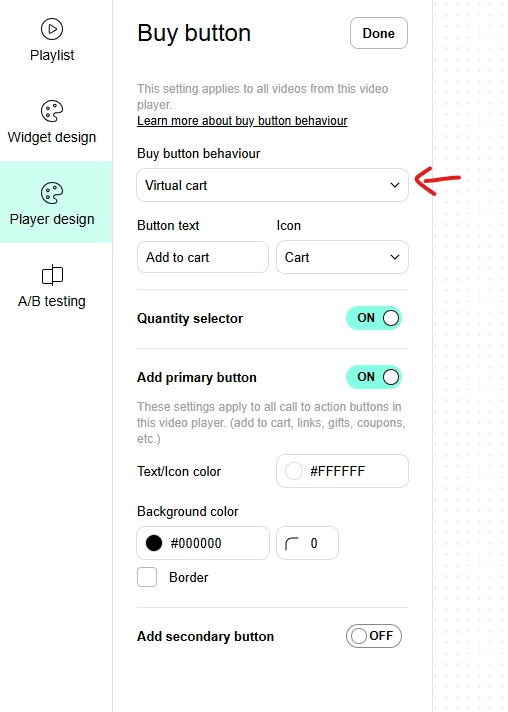
In most headless setups, add-to-cart is handled by custom logic — not only adding the item, but also opening a cart drawer, showing notifications, or updating UI. Because of this variability, Videowise does not perform the add-to-cart action directly. Instead, Videowise emits custom browser events that your application can listen for and handle with your own logic.- Shoppable widgets — set Buy button behaviour to Virtual cart in Widget → Player design → Buy button. The widget event list is in Custom events.
- Live shopping — use
customCartonwindow.videowiseInfo. See Live shopping custom cart.
Custom event: videowiseProductAddToCart
When a user clicks Add to Cart inside the Videowise widget, a videowiseProductAddToCart event is dispatched. Product details are available on event.detail:
variantId— the Shopify variant IDqty— the selected quantity
videowiseTriggerPlayerClose:
Hydrogen-specific notes
- Before rendering, set
pidonwindow.videowiseInfoto the product ID. - When navigating away from a product page, set
pidtonull. - After client-side navigation, re-render widgets with
initVideowise/initVideowiseBulk.
Live shopping channel on custom platforms
Ifwindow.videowiseInfo is not already on the page, set at least the fields below before the channel script. Without shop identity, the channel mounts but live / upcoming / past lists stay empty.
videowiseInfo and filtering by host.
Related
- Shoppable videos overview
- Widget re-rendering — call
initVideowise/initVideowiseBulkafter client-side navigation - Widget custom events — including
videowiseProductAddToCart - Live shopping custom cart —
customCartand parentvideowiseProductAddToCart - Live shopping
- Order tracking
- Cookies
- React Native SDK